import pandas as pd
import datetimeData Prep
This document provides the steps of loading a dataset from a CSV file and reformating it to a time series object following Nixtla format. This includes the following steps:
- Loading the raw data from a CSV file
- Reformat the data
- Filter the data by time range
Data
We will use a preload dataset of the US hourly demand for electricity sourced from the EIA API.
The header of the query from the EIA API:
{
    "frequency": "hourly",
    "data": [
        "value"
    ],
    "facets": {
        "respondent": [
            "US48"
        ],
        "type": [
            "D"
        ]
    },
    "start": null,
    "end": null,
    "sort": [
        {
            "column": "period",
            "direction": "desc"
        }
    ],
    "offset": 0,
    "length": 5000
}
Note: The EIA API has a 5000-observation limit per call. Therefore, if you wish to pull the full series history, you will have to send multiple GET requests by iterate over the date range.
Required Libraries
Throughout this notebook, we will use the pandas library to handle the data and the datetime library to reformat the object timestamp:
Load the Raw Data
We will load the US hourly demand for electricity from a flat file using the pandas’ read_csv function:
data = pd.read_csv("data/us48.csv")
data = data.rename(columns={"index": "period"})
Let’s use the head and dtypes methods to review the object attributes:
print(data.head()) period respondent type value value-units y
0 2019-01-01 00:00:00 US48 D 461392 megawatthours 461392.0
1 2019-01-01 01:00:00 US48 D 459577 megawatthours 459577.0
2 2019-01-01 02:00:00 US48 D 451601 megawatthours 451601.0
3 2019-01-01 03:00:00 US48 D 437803 megawatthours 437803.0
4 2019-01-01 04:00:00 US48 D 422742 megawatthours 422742.0The raw data has the following seven columns:
- period - the series timestamp
- respondent - the series code
- respondent-name - the series name
- type - the series type code
- type-name - the series type name
- value - the series values
- value-units - the series values units
print(data.dtypes)period object
respondent object
type object
value int64
value-units object
y float64
dtype: objectAs you can notice from the above output, the series value is set as a float64 (e.g., numeric), however, the series timestamp - period is a string. Therefore, we will have to reformat it into a datetime object using the to_datetime function:
data["period"] = pd.to_datetime(data["period"])We can validate the object format after the conversion of the period column:
print(data.dtypes)period datetime64[ns]
respondent object
type object
value int64
value-units object
y float64
dtype: objectReformat the DataFrame to Nixtla Input format
Nixtla libraries inputs use the following there columns data structure:
unique_id- the series ID, enabling the use of a time series object with multiple time seriesds- the series timestampy- the series values
Let’s reformat the DataFrame object by reducing unused dimensions and keeping the series timestamp and values:
ts = data[["period", "value"]]
ts = ts.sort_values("period")
ts = ts.rename(columns = {"period": "ds", "value": "y"})
ts["unique_id"] = "1"

ts.head()
ts.tail()| ds | y | unique_id | |
|---|---|---|---|
| 52604 | 2024-12-31 20:00:00 | 456107 | 1 |
| 52605 | 2024-12-31 21:00:00 | 457670 | 1 |
| 52606 | 2024-12-31 22:00:00 | 464025 | 1 |
| 52607 | 2024-12-31 23:00:00 | 473192 | 1 |
| 52608 | 2025-01-01 00:00:00 | 477136 | 1 |
Let’s now plot the series using the plot function from the StatsForecast module:
from statsforecast import StatsForecast

StatsForecast.plot(ts)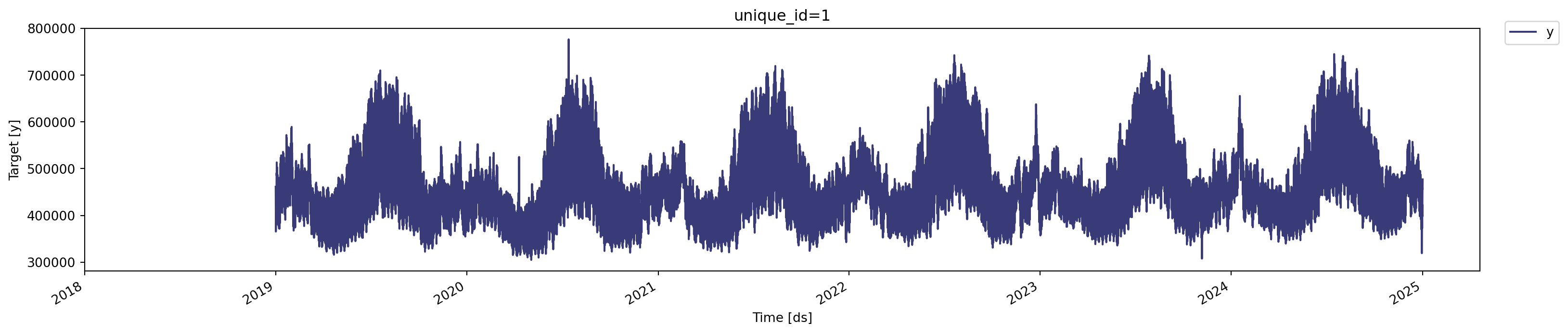
By default, the plot series uses the matplotlib library as the visualization engine. You can modify it to plotly using the engine argument:
StatsForecast.plot(ts, engine = "plotly").update_layout(height=300)Subsetting the series
As we want to use later two full yearly cycles to train the models, we will subset the series to the last 25 months (leaving at least a month for testing). Let’s start by defining the end time of the series as the last full day (e.g., that has at least 24 hours) by finding the most recent timestamp floor and subtracting 1 hour.
end = ts["ds"].max().floor(freq = "d") - datetime.timedelta(hours = 1)

end = datetime.datetime(2024, 12, 1, 0, 0) - datetime.timedelta(hours = 1)
print(end)
2024-11-30 23:00:00Next, let’s subtract from the end value 25 months:
start = end - datetime.timedelta(hours = 24 * 30 * 25)
print(start)
2022-11-11 23:00:00Now, we can use the start and end values to subset the series:
df = ts[(ts["ds"] <= end) & (ts["ds"] >= start)]

df.tail()| ds | y | unique_id | |
|---|---|---|---|
| 51859 | 2024-11-30 19:00:00 | 460592 | 1 |
| 51860 | 2024-11-30 20:00:00 | 456492 | 1 |
| 51861 | 2024-11-30 21:00:00 | 455024 | 1 |
| 51862 | 2024-11-30 22:00:00 | 462062 | 1 |
| 51863 | 2024-11-30 23:00:00 | 476419 | 1 |
Reploting the subset series:
StatsForecast.plot(df, engine = "plotly").update_layout(height=300)df2 = df.copy()
df2 = df2[["ds", "y"]]
df2 = df2.rename(columns = {"ds": "period"})
df2.head()| period | y | |
|---|---|---|
| 33863 | 2022-11-11 23:00:00 | 456403 |
| 33864 | 2022-11-12 00:00:00 | 458842 |
| 33865 | 2022-11-12 01:00:00 | 455111 |
| 33866 | 2022-11-12 02:00:00 | 448035 |
| 33867 | 2022-11-12 03:00:00 | 438165 |
Saving the Data Back to CSV
last but not least, let’s save the series:
df.to_csv("data/data.csv", index = False)
df2.to_csv("data/data2.csv", index = False)
ts.to_csv("data/ts_data.csv", index = False)